
Seamless Shipping
Fast, reliable delivery with Real-time tracking and updates
Moorah Download gives users several ways to access Moorah across Android, iOS, Windows and macOS. You can use the download button on this page to visit the Moorah official website and select the relevant store option from the footer, or follow the alternative website shortcut steps below for your device.
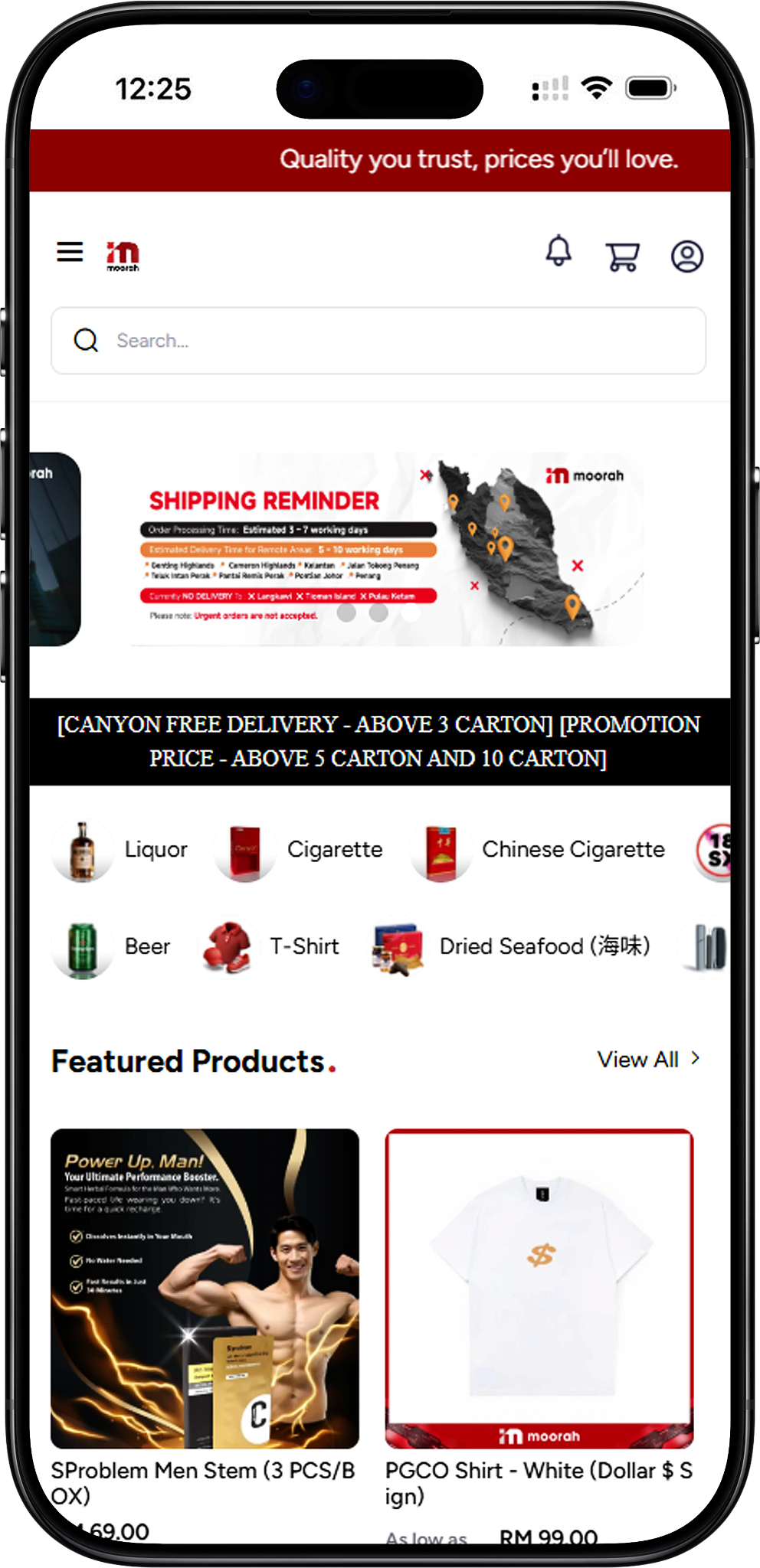
Android users can begin the Moorah Download process from this page and continue to the official website. The Google Play option is available in the website footer for supported downloads.
Select the Download button on this page to continue to the Moorah official website.
Scroll to the footer of the Moorah website and locate the Google Play button.
Select Google Play and follow the instructions displayed for your Android device to continue with the App download.
After completing the installation process, use the available app icon on your device to open Moorah.
iPhone and iPad users can access the iOS download option through the Moorah website. The App Store button can be found in the footer.
Select the Download button on this page to proceed to the Moorah official website.
Scroll down to the website footer and find the App Store download option.
Select App Store and follow the instructions presented for your iOS device.
Once the installation is complete, open Moorah from the app icon on your iPhone or iPad.
Windows users can start from the Moorah website and use the Google Play option shown in the footer for the available Windows download route. Alternatively, a website shortcut can be created directly on the desktop.
Use the Download button on this page to access the Moorah official website from your Windows computer.
Navigate to the footer and select the Google Play button.
Continue with the instructions provided after selecting Google Play to complete the available download process for Windows.
macOS users can start the Moorah Download process from the official website and use the App Store option displayed in the footer. A website shortcut can also be created for direct browser access.
Select Download to continue from this page to the Moorah official website.
Scroll to the bottom of the website and locate the App Store button in the footer.
Select the App Store option and follow the instructions displayed for your macOS device.
Android users who prefer direct website access can add a website shortcut to their Home Screen through Chrome.
Launch Google Chrome on your Android device.
Enter https://www.gfg.game/#/ in Chrome and open the website.
Tap the three-dot menu in the upper-right corner of Chrome.
Choose Add to Home screen from the available Chrome options.
Enter a name such as Good Fortune Gaming, confirm the selection and add it to your Home Screen. The website icon will then appear alongside your other shortcuts.
Chrome may sometimes display Install app instead of Add to Home screen. If this occurs, you can refresh the page and check the menu again. The provided setup instructions also suggest temporarily switching to Airplane Mode and then restoring your internet connection if the shortcut option does not appear as expected.
iPhone and iPad users can create a Home Screen shortcut through Safari for quicker access to the website.
Launch Safari on your iPhone or iPad. This Home Screen method should be completed using Safari.
Visit https://www.gfg.game/#/ using Safari.
Tap the Share button, represented by a square with an upward arrow.
Find and select Add to Home Screen from the Share menu.
Customize the shortcut name, such as Moorah, and tap Add. The website icon will then appear on your iPhone or iPad Home Screen.
Windows users have several options for creating a desktop shortcut, including drag and drop, Chrome, Microsoft Edge and the manual Windows shortcut method.
Open the website using Chrome, Edge or Firefox.
Drag the site or lock icon from the browser address bar onto your Windows desktop.
A desktop shortcut will be created. Double-click it whenever you want to open the website in your default browser.
Launch Chrome and go to Good Fortune Gaming.
Select the three-dot menu and navigate to the available shortcut creation option under Chrome’s tools.
Name the shortcut Good Fortune Gaming. Where available, you can choose Open as window before confirming the shortcut.
Launch Microsoft Edge and visit Good Fortune Gaming.
Select the three-dot menu, go to Apps, and choose Install this site as an app.
Complete the displayed installation steps. You can then access the site through Windows and use the available options to pin it where required.
Right-click an empty area of the Windows desktop and select New, followed by Shortcut.
Paste https://www.moorah.game/#/ into the location field and continue.
Enter your preferred shortcut name and select Finish to create the desktop shortcut.
macOS users can create a direct website shortcut using Safari or Chrome.
Launch Safari and open the Moorah website.
Drag the URL or site icon from Safari’s address bar onto your desktop.
macOS will create a .webloc file. Double-click the shortcut whenever you want to open the website in Safari.
Open the relevant website in Google Chrome on your Mac.
Open Chrome’s menu and use the available shortcut creation option to create a website shortcut.
Enter your preferred name and confirm to create the shortcut.
To customize an existing shortcut icon on macOS, right-click the shortcut and select Get Info. A custom image can then be copied and pasted onto the icon preview.
You can select the Download button on this page to proceed to the Moorah official website, then use the relevant Google Play or App Store option displayed in the footer.
Android users can use the Google Play option provided through the website or create a Home Screen website shortcut using Chrome.
The website footer provides an App Store option for iOS users. iPhone and iPad users can also add the provided website to their Home Screen through Safari.
The provided download routes cover Windows and macOS, while desktop users can also create browser-based website shortcuts using the methods described above.
The provided Android instructions direct users to the Google Play option or the Chrome Home Screen method. No separate APK installation procedure is specified on this page.
Yes. The shortcut methods are alternative access options. You can continue to access the relevant website directly through your browser.
Choose the Moorah Download option for Android, iOS, Windows or macOS, or follow the website shortcut steps for convenient access from your device.
Fast, reliable delivery with Real-time tracking and updates

Earn bonuses for every friend you invite

Win Jackpot by purchasing products

Get assistance on 8AM - 8PM daily